Appearance
3. Web Front-Ends With Vue.js And Pico.css
3.1. Introduction
While it would be possible for users to interact with your backend using curl, that would not be particularly easy for them. Instead, you should give them an intuitive web-based interface. This is known as the application's "front end". As you make it, keep in mind a few things:
- The front end should help the user to avoid making mistakes
- The back end cannot rely on the front end to prevent security violations
- The front end should be easy to use
- The front end should be easy to maintain
A key idea in web design is to separate the frontend into three parts:[1]
- Structure of the interface: This uses HTML tags to create a template, and then data gets inserted into places in that template.
- Style of the interface: This uses CSS rules to describe how those tags should appear.
- Reactive code: This uses JavaScript to get data, put data into the templates, and react when the various interactive components in the front end are clicked.
For each of these parts, there are many different frameworks and tools that you could use. You must choose wisely. Whatever choice you make will affect the long-term maintainability of the program, because a new maintainer who is unfamiliar with your chosen technology will need to learn the tech before they can contribute.
Fortunately, there are synergies between some choices. In particular, there is an approach to structuring the interface based on Semantic HTML. Semantic HTML uses special tag names to indicate their meaning or their role in the user interface. A simple example is that a table whose first row has column headings could use <th> tags (table header) instead of <td> tags (table data). There are some very specific semantic tags, like <dialog> and <nav>, and some more generic ones, like <article>, <header>, <section>, and <main>. These are leveraged by the Pico css framework to deliver a default style that lets you avoid writing much style style code, while still getting a nice-looking interface.
This chapter will show you how to use the Vue.js framework to manage the reactive code. Vue will handle a lot of tricky tasks without requiring you to write much code. Vue is compatible with TypeScript, an alternative to JavaScript that helps you find bugs early.
3.2. Updating The Back-End To Serve Files
The back-end server will need a place where it can find your frontend's .html, .js, and .css files, so that it can send those files to a client browser to enable the browser to present the user with a nice interface. When your app is live on the web, those files should be inside the jar that gets produced by mvn package. But you do not want to have to re-compile and re-start the backend every time you make a tiny change to the frontend. A nice approach is to use an environment variable to decide, at run time, whether to use the jar, or to use a special out-of-jar mechanism.
In your backend's App.java file, first add this import:
java
import io.javalin.http.staticfiles.Location;Next, get the STATIC_LOCATION environment variable:
java
String staticLocation = System.getenv("STATIC_LOCATION");Don't forget to report it in the log, to help with debugging:
java
System.out.println(" STATIC_LOCATION=" + staticLocation);Finally, in the lambda where you configure Javalin, after you finish attaching the logger, add these lines:
java
// Serve static files from JAR or FileSystem
config.staticFiles.add(staticFiles -> {
    // This path is in the JAR, under main/resources
    if (staticLocation == null) {
        System.out.println("Serving files from JAR");
        staticFiles.location = Location.CLASSPATH;
        staticFiles.directory = "/public";
    }
    // This path is in the file system
    else {
        System.out.println("Serving files from EXTERNAL LOCATION");
        staticFiles.location = Location.EXTERNAL;
        staticFiles.directory = staticLocation;
    }
    System.out.printf("Using staticFiles.directory=%s%n", staticFiles.directory);
    staticFiles.precompress = false; // Don't compress/cache in mem
});
// Support single-page apps
if (staticLocation == null) {
    String defaultPage = "public/index.html";
    System.out.println(
            "********************** STATIC_LOCATION == null --> setting spaRoot to " + defaultPage);
    config.spaRoot.addFile("/", defaultPage, Location.CLASSPATH);
} else {
    String defaultPage = staticLocation + "/index.html";
    System.out.println(
            "********************** STATIC_LOCATION != null --> setting spaRoot to " + defaultPage);
    config.spaRoot.addFile("/", defaultPage, Location.EXTERNAL);
}
This code does two things. First, it uses config.staticFiles to say that whenever a GET request cannot be satisfied by one of the data routes that you will set up below, the server should try to find a file that can do the job. If the STATIC_LOCATION environment variable is set, it should try to find a matching file path/name in the given folder. Otherwise, it should look in the jar file. To get files into the jar, you'll need to put them in the /src/main/resources/public folder.
Secondly, it uses spaRoot to indicate that when a matching static file cannot be found, you still want to send the main web page, instead of producing a 404 error. This provides a nicer user experience, because it means that the frontend can be a single page app that lets the user refresh at any point and not lose their navigation history. Notice that the spaRoot path varies depending on whether the file is served from the filesystem or the jar.
Before moving on, you should run mvn package to make sure there aren't any syntax errors. You won't be touching this Java code again for a while.
3.3. Creating A Vue Project
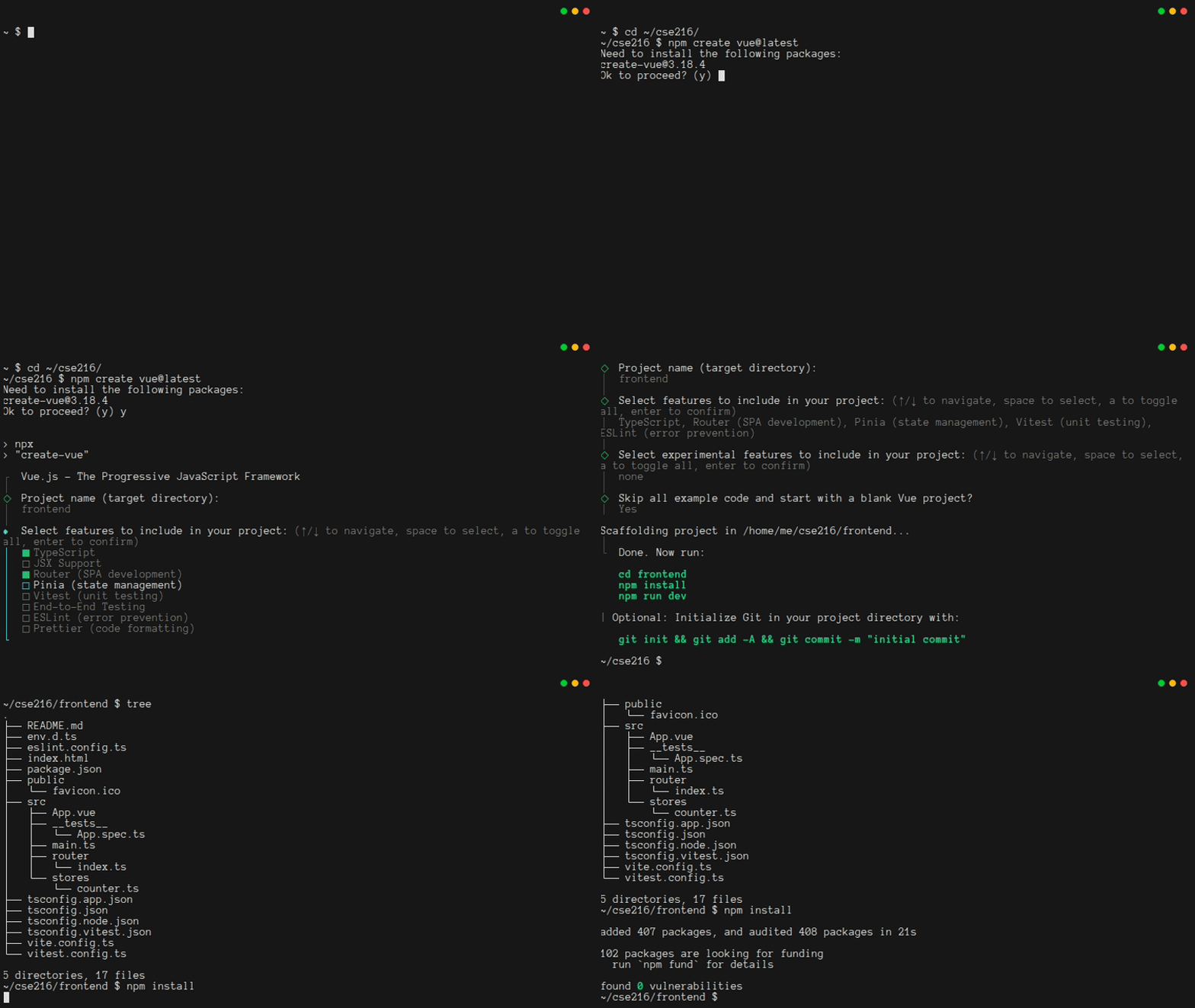
It's time to make the default Vue.js project. To do this, you will need to install Node.js. Then, in the root of your project (the folder where admin, backend, and local are sub-folders), type the following:
bash
npm create vue@latestYou will need to answer a few questions:
- Be sure to say
ywhen asked "Ok to proceed?" - For the project name, type
frontend. - For the features, use the up and down arrows, along with the space bar, to select
TypeScript,Router,Pinia,Vitest, andESLint, then pressEnter - You don't need experimental features, so you can just press
Enter - Say
ywhen asked about skipping example code
This will produce a folder structure with 22 files in it. The most important is package.json. It is like pom.xml in your Java projects. However, npm and mvn work a bit differently. Whereas maven would automatically fetch libraries any time the pom.xml file changed, npm requires you to explicitly fetch libraries any time package.json changes. This includes the very first time, so you should immediately type cd frontend and then npm install to fetch the dependencies for your program.
Next, you should add some additional libraries. This is a little bit easier than what you did with Maven, because you don't have to find XML on the web: you can just ask npm to get the latest versions for you:
This line will add the libraries that are used by the frontend:
bash
npm install @picocss/picoThis will add add libraries that will be useful when building the code. Since they won't be part of the app, just part of the build process, you should use the --save-dev flag:
bash
npm install --save-dev rimraf copy-folder-utilRegular vs Dev Dependencies
Regular dependencies are for libraries that must be included as part of the app that you publish to the web. Dev dependencies are for tools that you need in order to build the app, but that don't ship with the final code. Examples of dev dependencies include the TypeScript-to-JavaScript compiler and the Vitest unit testing suite.
Finally, add two more lines to the scripts section of package.json:
json
    "deploy": "copy-folder-util dist ../backend/src/main/resources/public",
    "clean": "rimraf dist/",
Warning: Commas Matter
package.json is very picky about commas. Any time you have a comma-separated list of values inside of [] or {} braces, the last element must not have a comma after it.
With these changes in place, you can type npm run build at any time to compile your frontend code to JavaScript, placing it in the dist folder. You can also type npm run deploy to copy the most recently built version of your frontend over to the backend's resources folder, and you can type npm run clean to delete your dist folder.
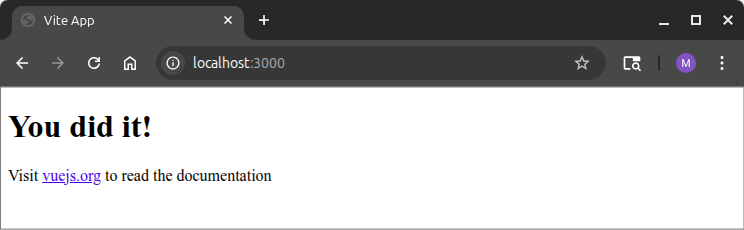
It's time to run your frontend. First, type npm run build. Then go to your backend folder, and start your web server. When you start it, be sure to include STATIC_LOCATION=../frontend/dist in the environment. For now, you might want to add this to your local/backend.env file, even though you'll need to remove it later.
If you visit localhost:3000, you'll be asked to log in. After you log in, you should see something like this:
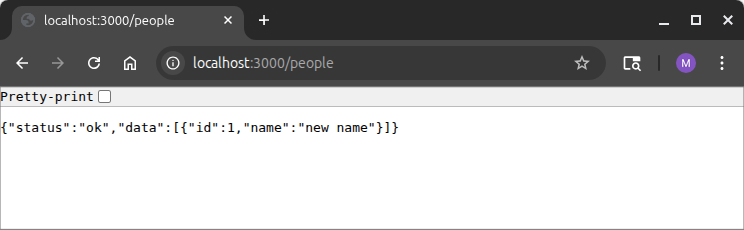
If you go to localhost:3000/people, you should receive some JSON data, indicating that the data routes behave the same way as before:
And if you go to localhost:3000/invalid -- or any other undefined endpoint -- you should see the home page.
You should make sure you understand what just happened. When you enter an address into the browser, it issues a GET to the server. When the path of the GET matches one of your back-end data routes (via app.get()), then the corresponding code on the backend figures out how to reply. If none of those match, then if the path matches the name of a file in the static file path, then that file will be sent. And if nothing else matches, the spaRoot file will be sent instead of the typical behavior of a 404 Not Found.
3.4. A First Component
A good way to start learning Vue.js is to make a component that can display the list of people more nicely. In the src folder, create a new file named PersonAll.vue.
This component will need <style>, <script>, and <template> sections. The order of the sections does not matter. Here's the script:
vue
<script setup lang="ts">
import { onBeforeMount, reactive } from "vue";

/** Two-way binding with the template */
const localState = reactive({
    /** A message indicating when the data was fetched */
    when: "(loading...)",
    /** The rows of data to display */
    data: [] as { id: number, name: string }[]
});

/** Clicking a row should take us to the details page for that row */
function click(id: number) {
    window.alert(id);
}

/** Get all of the people and put them in localState, so they'll display */
async function fetchAllMessages() {
    let res = await fetch('/people', {
        method: 'GET',
        headers: { 'Content-type': 'application/json; charset=UTF-8' }
    });
    if (!res.ok) {
        window.alert(`The server replied: ${res.status}: ${res.statusText}`);
        return;
    }
    let json = await res.json();
    if (json.status === "ok") {
        localState.data = json.data;
        localState.when = new Date().toString();
    } else {
        window.alert(json.message);
    }
};

onBeforeMount(fetchAllMessages);
</script>
Use Your IDE Well!
If you are using Visual Studio Code as your IDE, then the first time you open a .vue file, it may ask if you wish to install the recommended 'Vue (Official)' extension. Usually, these extensions do a lot of behind-the-scenes work to help you avoid silly bugs, and to help you write code faster. However, you should always check the author and reviews before installing an extension.
In this code, there is a reactive object called localState. localState has two fields, one of which is an array of objects with id and name fields. Being reactive is important. That means that when the data in it changes, the UI will automatically change. It also means that if the data is changed by the UI, then the corresponding part of localState will change.
There's a click function that displays its argument, and then the last piece is a function that issues a GET to the server to get the list of people as JSON. If anything goes wrong, the code reports an error. Otherwise, it puts the data into localState.
Next, add the HTML template for displaying this data:
vue
<template>
    <section>
        <h2>All People</h2>
        <table>
            <thead>
                <tr>
                    <th scope="col">Name</th>
                </tr>
            </thead>
            <tbody>
                <tr v-for="elt in localState.data" :key="elt.id" @click="click(elt.id)">
                    <td> {{ elt.name }} </td>
                </tr>
            </tbody>
        </table>
        <div>As of {{ localState.when }}</div>
    </section>
</template>
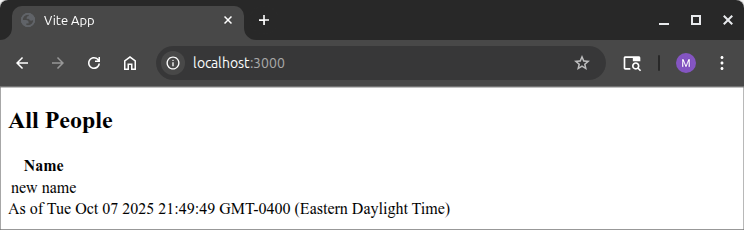
The template uses a <section> to hold the component, which consists of a title (in a <h2> tag) and a table. The table uses v-for to say "make a table row (<tr>) for each row of data in localState.data". Each of those rows needs a unique key, and the id of the row from the database will suffice. Lastly, @click connects a click of a row to the click function from the script. When it is called, the id of the row will be the argument.
Inside the row, there is only one column (a <td>). The double-curly syntax says to use reactive data — in this case, the value of the name field for the row.
Finally, the same double-curly syntax lets the component display the date/time when the data was fetched.
In order to get the component to display, you'll need to update App.vue. You can replace the file with this:
vue
<template>
  <main class="container">
    <PersonAll />
  </main>
</template>

<script setup lang="ts">
import PersonAll from './PersonAll.vue';
</script>
If you run npm run build, and then refresh the page, you'll see that there is now some data going into the template. But it looks ugly:
You can fix most of the appearance issues by just turning on pico.css. Simply add this line to main.ts:
ts
import '@picocss/pico/css/pico.min.css'Re-run npm run build, and then refresh the browser:
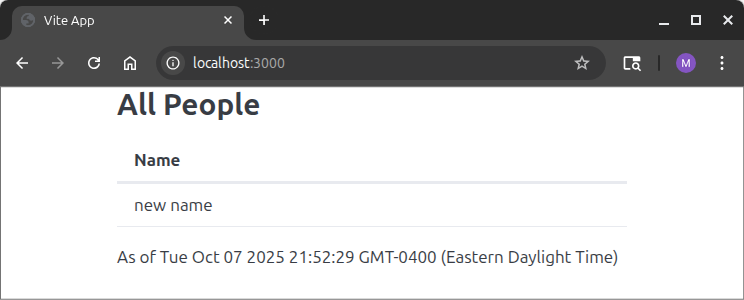
That's quite a bit better, but there's one oddity. Try clicking on a row. When you do, the click function is running, but the row isn't responding to your mouse hovering over it. To fix that, add this <style> section to PersonAll.vue:
vue
<style scoped>
tr:hover td {
    cursor: pointer;
    background-color: #bbbbcc;
}
</style>
Now when you hover over a row, that row will be highlighted, and the cursor will change.
3.5. Getting Started With Routing
Believe it or not, you're almost at the point where you can make lots of components quickly. The main obstacle is that you haven't set up a "router" component yet. Just like the backend had a router for directing certain resource/verb pairs to specific handler functions, the frontend will have a router for directing certain addresses to Vue.js components. To get started with routing, edit src/router/index.ts:
ts
import { createRouter, createWebHistory } from 'vue-router';

import PersonAll from '@/PersonAll.vue';

/**
 * Routes helps avoid typing strings, so that we don't mis-type these in the
 * code
 */
export const Routes = {
  readPersonAll: "/pa",
  home: "/"
};

/** The router maps from addresses to components */
export const router = createRouter({
  history: createWebHistory(import.meta.env.BASE_URL),
  routes: [
    { path: Routes.home, name: "Home", component: PersonAll },
    { path: Routes.readPersonAll, name: "ReadPersonAll", component: PersonAll },
  ]
});
This creates two routes, both of which go to the PersonAll component. There is also a Routes object for storing the names of routes. This will help you to avoid mis-typing routes later on. Since the router now has two exports, you'll need to fix main.ts. Find this line:
ts
import router from './router'Replace it with this:
ts
import { router } from './router'Finally, update App.vue to use the router instead of directly using PersonAll:
vue
<template>
  <main class="container">
    <RouterView />
  </main>
</template>

<script setup lang="ts">
import { RouterView } from 'vue-router'
</script>
You should be able to test this code by typing npm run build, and then refreshing your browser. Nothing will look different, but now the component is being selected by the router, instead of being hard-coded.
3.6. Adding a Menu
At this point, you can set up the infrastructure for all of the routes of the frontend. Note that you won't implement the components for these routes yet, but you will set up a menu for navigating among them.
First, update the Routes in src/router/index.ts:
ts
export const Routes = {
  createMessage: "/cm",
  readMessageAll: "/ma",
  readMessageOne: "/m1",
  readPersonAll: "/pa",
  readPersonOne: "/p1",
  home: "/"
};
Next, create a new component src/Menu.vue:
vue
<template>
    <nav>
        <ul>
            <li><a @click="allMessage">Messages</a></li>
            <li><a @click="createMessage">Create Message</a></li>
            <li><a @click="allPeople">People</a></li>
        </ul>
        <ul>
            <li><a @click="logout">Log out</a></li>
        </ul>
    </nav>
</template>

<style scoped>
li {
    cursor: pointer;
}
</style>

<script setup lang="ts">
import { Routes, router } from "@/router";

/** Clicking "People" shows all the people */
function allPeople() {
    // If we're on "People" and click "People", we need a refresh (via go(0))
    if (router.currentRoute.value.path == Routes.readPersonAll) { router.go(0); }
    else { router.replace(Routes.readPersonAll); }
}

/** Clicking "Messages" shows all the messages */
function allMessage() {
    // If we're on "Messages" and click "Messages", we need a refresh (via go(0))
    if (router.currentRoute.value.path == Routes.readMessageAll) { router.go(0); }
    else { router.replace(Routes.readMessageAll); }
}

/** Navigate to the page for creating a message. */
function createMessage() {
    router.replace(Routes.createMessage);
}

/** Log out and then redirect to home, which will force a refresh/login */
async function logout() {
    await fetch("/logout", { method: 'GET' });
    (window.location as any) = "/"; // trigger a refresh
}
</script>
This component uses a <nav> tag with embedded unordered lists (<ul>), because pico.css will format them nicely for us, without needing explicit styling. The different menu items (<li>s) are connected to different functions that run when clicked. The only tricky thing is that the router doesn't automatically refresh if the navigation would go to the current component. To get around this, the code uses router.go(0) in a few places.
To enable menu, add this as the first line inside <main> tag in App.vue (i.e. before the <RouterView />):
vue
<Menu />Then, add this import to the script section:
ts
import Menu from '@/Menu.vue'If you re-build the frontend and then refresh the page, you should see a menu. The first two options won't do anything, but the third will either bring you back to the people listing, or re-load it. (Remember that re-loading might not work for as long as you're using STATIC_LOCATION). In addition, the logout button will log the user out, and redirect to the login page.
3.7. Global Reactive State
The menu bar on the top of the page is global, but it doesn't have any reactive data associated with it, so you didn't need to worry about how components interact with it. It would be nice to have a reusable pop-up box in the app, for displaying messages (such as error messages) more nicely.
This will use a component built around an HTML5 <dialog> box. But it makes more sense to begin by building the global state for controlling the dialog. Start by renaming stores/counter.ts to stores/globals.ts. Then, replace its contents with this:
ts
import { defineStore } from "pinia";
import { ref, type Ref } from "vue";

/**
 * globals is a reactive data store, made with Pinia.  It holds all of the
 * global state of the program.
 */
export const globals = defineStore('globals', () => {
  /** `popup` controls the popup for info and error messages */
  const popup = ref({ msg: "", header: "", element: undefined as undefined | Ref });

  /** show the popup */
  function showPopup(header: string, message: string) {
    popup.value.msg = message;
    popup.value.header = header;
    popup.value.element.showModal();
  }

  /** hide the pop-up */
  function clearPopup() {
    popup.value.msg = "";
    popup.value.header = "";
    popup.value.element.close();
  }

  return { popup, showPopup, clearPopup }
});
This code declares an object ('popup') that has some reactive state (msg and header). It also has a reference to a component (via element). To make the component, create a new file called src/Popup.vue:
vue
<template>
    <dialog ref="popup">
        <article>
            <header>
                <button aria-label="Close" rel="prev" @click="globals().clearPopup()"></button>
                <p> <strong>{{ globals().popup.header }}</strong> </p>
            </header>
            <p>{{ globals().popup.msg }}</p>
        </article>
    </dialog>
</template>

<script setup lang="ts">
import { globals } from "@/stores/globals";
import { onMounted, ref } from "vue";

// Get the <dialog> and give it to the globals, so that it can show/hide it
const popup = ref(null);
onMounted(() => globals().popup.element = popup);
</script>
This component is using the globals() object that you just defined, specifically its popup.header and popup.msg fields. The way to show and hide the dialog is by calling showModal() and close() on the <dialog> itself. That's a slightly tricky thing to do in Vue.js. The solution is to tag the <dialog> with ref="popup" and then write const popup = ref(null); in the script. Vue.js will connect the variable popup to the HTML element whose ref is popup. Since you really want the code in globals.ts to control popup, you need to set globals().popup.element. Doing so will let showPopup and clearPopup work. Setting globals().popup.element cannot be done until the ref has been "mounted", so the code uses the Vue.js onMounted function to run the initialization as soon as everything is ready.
Next, you will need to put the component into the program. It is hidden by default, so it makes the most sense to add it directly to App.vue. You'll need to add a line to the template, inside of <main>:
vue
<Popup />In order for that line to work, you'll also need to add this line to the <script>:
ts
import Popup from '@/Popup.vue'Now it's time to test the popup. Start by adding this import to PersonAll.vue:
ts
import { globals } from "@/stores/globals";You'll want to replace every instance of window.alert with a call to globals().showPopup.
ts
// window.alert(id);
globals().showPopup("Info", `${id}`)
ts
// window.alert(`The server replied: ${res.status}: ${res.statusText}`);
globals().showPopup("Error", `The server replied: ${res.status}: ${res.statusText}`);
ts
// window.alert(json.message);
globals().showPopup("Error", json.message);
Testing errors is tricky, so the easiest way to make sure the popup is working is to click on a user name:
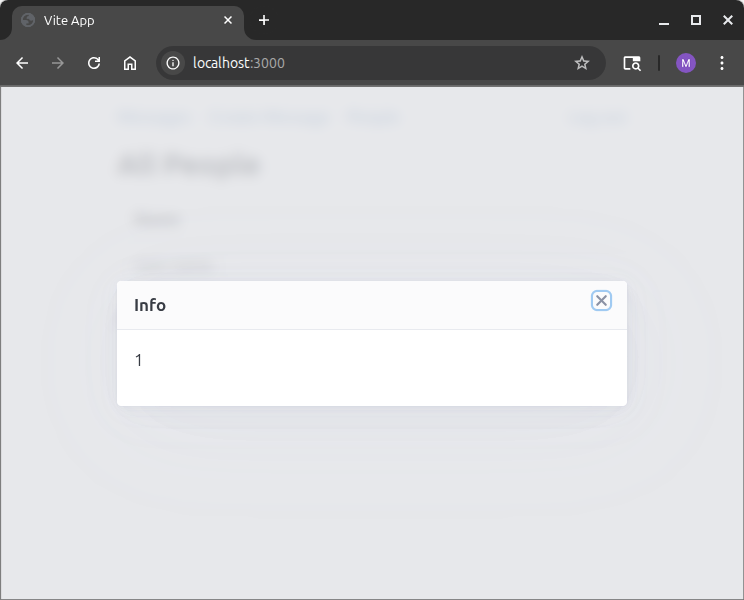
However, you don't really want a message when clicking a user's name. A better thing would be to make that click navigate to a component that shows the user's details. Start by adding this import:
ts
import { Routes, router } from "@/router";Then update the body of the click function with this:
ts
// window.alert(id);
// globals().showPopup("Info", `${id}`)
router.replace(Routes.readPersonOne + "/" + id);
There's one more thing that's going to be useful later on. Remember that the backend sends some cookies to the frontend. The cookies include information about the logged-in user's id in the database. You can use this to make sure the user doesn't think they can change the display name for any user other than themselves. But to make that work, you will need a function for extracting the id from the cookie. Create a file called src/helpers.ts, and put this in it:
ts
/** Extract from the cookies the value associated with `name` */
export function getCookieByName(name: string) {
    for (let cookie of document.cookie.split(';').map(c => decodeURIComponent(c.trim())))
        if (cookie.startsWith(name + '='))
            return cookie.substring(name.length + 1);
    return undefined;
}
3.8. Four More Components
At this point, all of the scaffolding is in place. You should be able to make lots of components, quickly. First, create src/PersonOne.vue:
vue
<template>
    <section>
        <h1>Person Details</h1>
        <label>Email</label>
        <input type="text" v-model="localState.email" disabled placeholder="Loading..." />
        <label>Name</label>
        <input type="text" v-model="localState.name" placeholder="Loading..." :disabled="!currentUser" />
        <p class="grid" v-if="currentUser">
            <button @click="update" :disabled="localState.buttonOff">Update</button>
        </p>
    </section>
</template>

<script setup lang="ts">
import { useRoute } from 'vue-router';
import { globals } from "@/stores/globals";
import { onBeforeMount, reactive } from 'vue';
import { getCookieByName } from '@/helpers';

/** The Id of the person we're working with */
let id: string = useRoute().params.id as string;

/** Is the logged in user the person being displayed, able to edit? */
let currentUser = false;

/** Two-way binding to the template */
const localState = reactive({
    loaded: false,
    email: "",
    name: "",
    buttonOff: true,
});

/** Get the person's contents and put them in localState, so they'll display */
async function loadOneMessage() {
    let res = await fetch(`/people/${id}`, {
        method: 'GET',
        headers: { 'Content-type': 'application/json; charset=UTF-8' }
    });
    if (!res.ok) {
        globals().showPopup("Error", `The server replied: ${res.status}: ${res.statusText}`);
        return;
    }
    let json = await res.json();
    if (json.status === "ok") {
        localState.email = json.data.email;
        localState.name = json.data.name;
        localState.loaded = true;
        localState.buttonOff = false;
        currentUser = "" + json.data.id === getCookieByName("auth.id");
    } else {
        globals().showPopup("Error", json.message);
    }
};

/** Update the person's name */
async function update() {
    // Validate, then disable the button
    if (!localState.loaded) return;
    if (localState.name === "") {
        globals().showPopup("Error", "The name cannot be blank");
        return;
    }
    localState.buttonOff = true;

    // Now send the request, then re-enable the button
    let res = await fetch(`/people/`, {
        method: 'PUT',
        body: JSON.stringify({ name: localState.name }),
        headers: { 'Content-type': 'application/json; charset=UTF-8' }
    });
    localState.buttonOff = false;
    if (res.ok) {
        let json = await res.json();
        if (json.status === "ok") { globals().showPopup("Info", "Name successfully updated"); }
        else { globals().showPopup("Error", json.message); }
    } else {
        globals().showPopup("Error", `The server replied: ${res.status}\n` + res.statusText);
    }
}

onBeforeMount(loadOneMessage);
</script>
PersonOne is using the cookie to compute currentUser, which is used to hide buttons and disable form elements. The only other noteworthy thing about this code is that the <input> boxes have two-way binding to localState. That is, they get their values from localState, but when the user changes their content, localState is automatically updated to reflect the change. This property simplifies the code for sending a PUT to update the display name.
Next, create MessageCreate.vue:
vue
<template>
    <section>
        <h2>Create a Message</h2>
        <label>Subject</label>
        <input type="text" v-model="localState.subject" placeholder="Your subject" />
        <label>Details</label>
        <textarea v-model="localState.message" placeholder="Message details"></textarea>
        <button @click="create" :disabled="localState.buttonOff">Create</button>
        <div>{{ localState.status }}</div>
    </section>
</template>

<script setup lang="ts">

import { router, Routes } from "@/router";
import { globals } from "@/stores/globals";
import { reactive } from "vue";

/** Two-way binding with the template */
const localState = reactive({
    subject: "",
    message: "",
    buttonOff: false,
    status: "",
});

/** Create the message*/
async function create() {
    // Validate, then disable the button and update the status
    if (localState.subject === "") {
        globals().showPopup("Error", "The subject cannot be blank");
        return;
    }
    if (localState.message === "") {
        globals().showPopup("Error", "The message cannot be blank");
        return;
    }
    localState.buttonOff = true;
    localState.status = "Posting message with subject '" + localState.subject + "'";

    // Now send the request, then re-enable the button
    let res = await fetch('/messages', {
        method: 'POST',
        body: JSON.stringify({ subject: localState.subject, details: localState.message }),
        headers: { 'Content-type': 'application/json; charset=UTF-8' }
    });
    localState.status = "";
    localState.buttonOff = false;
    if (res.ok) {
        let json = await res.json();
        if (json.status === "ok") {
            globals().showPopup("Info", `Message '${localState.subject}' created successfully.`);
            router.replace(Routes.readMessageAll);
        }
        else {
            globals().showPopup("Error", json.message);
        }
    } else {
        globals().showPopup("Error", `The server replied: ${res.status}: ${res.statusText}`);
    }
}
</script>
You're probably noticing that the code is quite repetitive. Here's MessageAll.vue:
vue
<template>
    <section>
        <h2>All Messages</h2>
        <table>
            <thead>
                <tr>
                    <th scope="col">Title</th>
                    <th scope="col">Last Update</th>
                </tr>
            </thead>
            <tbody>
                <tr @click="click(elt.id)" v-for="elt in localState.data" :key="elt.id">
                    <td> {{ elt.subject }} </td>
                    <td> {{ elt.as_of }} </td>
                </tr>
            </tbody>
        </table>
        <div>As of {{ localState.when }}</div>
    </section>
</template>

<style scoped>
tr:hover td {
    cursor: pointer;
    background-color: #bbbbcc;
}
</style>

<script setup lang="ts">
import { Routes, router } from "@/router";
import { globals } from "@/stores/globals";
import { onBeforeMount, reactive } from "vue";

/** Two-way binding with the template */
const localState = reactive({
    /** A message indicating when the data was fetched */
    when: "(loading...)",
    /** The rows of data to display */
    data: [] as { id: number, subject: string, as_of: string }[]
});

/** Clicking a row should take us to the details page for that row */
function click(id: number) {
    router.replace(Routes.readMessageOne + "/" + id);
}

/** Get all of the messages and put them in localState, so they'll display */
async function fetchAllMessages() {
    let res = await fetch('/messages', {
        method: 'GET',
        headers: { 'Content-type': 'application/json; charset=UTF-8' }
    });
    if (!res.ok) {
        globals().showPopup("Error", `The server replied: ${res.status}: ${res.statusText}`);
        return;
    }
    let json = await res.json();
    if (json.status === "ok") {
        localState.data = json.data;
        localState.when = new Date().toString();
    } else {
        globals().showPopup("Error", json.message);
    }
};

onBeforeMount(fetchAllMessages);
</script>
Finally, here is the code for MessageOne.vue:
vue
<template>
    <section>
        <h1>Message Details</h1>
        <label>Subject</label>
        <input type="text" v-model="localState.subject" disabled placeholder="Loading..." />
        <label>Details</label>
        <textarea v-model="localState.details" placeholder="Loading..." :disabled="!creator"></textarea>
        <label>Created By</label>
        <input type="text" v-model="localState.creator" disabled placeholder="Loading..." />
        <label>As Of</label>
        <input type="text" v-model="localState.as_of" disabled placeholder="Loading..." />
        <p class="grid" v-if="creator">
            <button @click="update" :disabled="localState.buttonOff">Update</button>
            <button @click="del" :disabled="localState.buttonOff">Delete</button>
        </p>
    </section>
</template>

<script setup lang="ts">
import { useRoute } from 'vue-router';
import { globals } from "@/stores/globals";
import { onBeforeMount, reactive } from 'vue';
import { router, Routes } from '@/router';
import { getCookieByName } from '@/helpers';

/** The Id of the message we're working with */
let id: string = useRoute().params.id as string;

/** Is the logged in user the message creator, able to edit/delete? */
let creator = false;

/** Two-way binding to the template */
const localState = reactive({
    loaded: false,
    subject: "",
    details: "",
    creator: "",
    as_of: "",
    buttonOff: true,
});

/** Get the message's contents and put them in localState, so they'll display */
async function loadOneMessage() {
    let res = await fetch(`/messages/${id}`, {
        method: 'GET',
        headers: { 'Content-type': 'application/json; charset=UTF-8' }
    });
    if (!res.ok) {
        globals().showPopup("Error", `The server replied: ${res.status}: ${res.statusText}`);
        return;
    }
    let json = await res.json();
    if (json.status === "ok") {
        localState.subject = json.data.subject;
        localState.details = json.data.details;
        localState.loaded = true;
        localState.buttonOff = false;
        localState.creator = `${json.data.name} (${json.data.email})`;
        localState.as_of = json.data.as_of;
        creator = `${json.data.creatorId}` === getCookieByName("auth.id");
    } else {
        globals().showPopup("Error", json.message);
    }
};

/** Update the message with the new details */
async function update() {
    // Validate, then disable the buttons
    if (!localState.loaded) return;
    if (localState.details === "") {
        globals().showPopup("Error", "The message cannot be blank");
        return;
    }
    localState.buttonOff = true;

    // Now send the request, then re-enable the button
    let res = await fetch(`/messages/${id}`, {
        method: 'PUT',
        body: JSON.stringify({ details: localState.details }),
        headers: { 'Content-type': 'application/json; charset=UTF-8' }
    });
    localState.buttonOff = false;
    if (res.ok) {
        let json = await res.json();
        if (json.status === "ok") { globals().showPopup("Info", "Message successfully updated"); }
        else { globals().showPopup("Error", json.message); }
    } else {
        globals().showPopup("Error", `The server replied: ${res.status}: ${res.statusText}`);
    }
}

/** Delete the message and return to the message listing */
async function del() {
    // Validate, then disable the buttons
    if (!localState.loaded) return;
    localState.buttonOff = true;

    // Send the request, then re-enable the button
    let res = await fetch(`/messages/${id}`, {
        method: 'DELETE',
        headers: { 'Content-type': 'application/json; charset=UTF-8' }
    })
    localState.buttonOff = false;
    if (res.ok) {
        let json = await res.json();
        if (json.status === "ok") {
            globals().showPopup("Info", `Message '${localState.subject}' deleted successfully.`);
            localState.subject = ""
            localState.details = "";
            router.replace(Routes.readMessageAll);
        } else {
            globals().showPopup("Error", json.message);
        }
    } else {
        globals().showPopup("Error", `The server replied: ${res.status}: ${res.statusText}`);
        localState.buttonOff = false;
    }
}

onBeforeMount(loadOneMessage);
</script>
Of course, none of this code will work until routing is set up. Two edits to router/index.ts are needed. First, add these imports, so that the four new components are available:
ts
import MessageAll from '@/MessageAll.vue'
import MessageOne from '@/MessageOne.vue'
import MessageCreate from '@/MessageCreate.vue'
import PersonOne from '@/PersonOne.vue'
Once that's in place, you can add these routes to the routes field in createRouter. (You'll probably also want to change the default route from PersonAll to MessageAll):
ts
{ path: Routes.createMessage, name: "CreateMessage", component: MessageCreate },
{ path: Routes.readMessageAll, name: "ReadMessageAll", component: MessageAll },
{ path: Routes.readMessageOne + '/:id', name: "ReadMessageOne", component: MessageOne, props: true },
{ path: Routes.readPersonOne + '/:id', name: "ReadPersonOne", component: PersonOne, props: true },
And just like that, the frontend is done! Be sure to run npm run build, and then refresh your browser. Then go ahead and perform CRUD operations with messages. You'll also want to use the admin app from Chapter 1 to create more users, so that you can verify that the frontend does not let a user edit other users' names.
As you interact with the program, you'll notice some nice look-and-feel issues. Pressing escape closes the pop-up. Deleting a message results in the user returning to the list of messages. As you develop your own apps, be sure to pay careful attention to the user experience. Otherwise, you'll wind up with an app that people do not enjoy using.
3.9. Finishing Up
Of course, it would be a good idea to develop some unit tests for your frontend.
Also, there are a few small look-and-feel issues that are probably worth addressing. Most notably, you probably want to change the <title> of your page, by editing index.html. You might also want to introduce some custom styling, since the pico.css styles aren't particularly colorful.
When you're happy with your work, you should commit it to your repository. Notice that when you created the app, a .gitignore was set up automatically, and it excluded node_modules and dist.
As a last step, you should use npm run build followed by npm run deploy to compile the frontend and copy it to the resources folder of your backend. Then you can re-build the backend with mvn package, restart the backend without STATIC_FILES, and make sure that your program is going to behave correctly when you deploy it to the web.
3.10. Getting Ready For Chapter 4
Before you start Chapter 4, you should make sure the code in your backend folder matches the code below:
java
package quickstart.backend;

import io.javalin.Javalin;
import io.javalin.http.staticfiles.Location;
import java.sql.SQLException;

import com.google.gson.*;

/** A backend built with the Javalin framework */
public class App {
    public static void main(String[] args) {
        // get the port on which to listen. If this crashes the program, that's
        // fine... it means "configuration error".
        int port = Integer.parseInt(System.getenv("PORT"));
        String dbFile = System.getenv("DB_FILE");
        String clientId = System.getenv("CLIENT_ID");
        String clientSecret = System.getenv("CLIENT_SECRET");
        String serverName = System.getenv("SERVER_NAME");
        String staticLocation = System.getenv("STATIC_LOCATION");

        System.out.println("-".repeat(45));
        System.out.println("Using the following environment variables:");
        System.out.println("  PORT=" + port);
        System.out.println("  DB_FILE=" + dbFile);
        System.out.println("  CLIENT_ID=" + clientId);
        // Warning: you probably don't want to put the secret into the logs!
        System.out.printf("  CLIENT_SECRET=%s%s%n", "*".repeat(clientSecret.length() - 5),
                clientSecret.substring(clientSecret.length() - 5, clientSecret.length()));
        System.out.println("  SERVER_NAME=" + serverName);
        System.out.println("  STATIC_LOCATION=" + staticLocation);
        System.out.println("-".repeat(45));

        // Do some quick validation to ensure the port is in range
        if (dbFile == null || serverName == null ||
                clientId == null || clientSecret == null ||
                port < 80 || port > 65535) {
            System.err.println("Error in environment configuration");
            return;
        }

        // Create the database interface and Gson object. We do this before
        // setting up the server, because failures will be fatal
        Database db;
        try {
            db = new Database(dbFile);
        } catch (SQLException e) {
            e.printStackTrace();
            return;
        }
        // gson lets us easily turn objects into JSON
        // This date format works nicely with SQLite and PostgreSQL
        Gson gson = new GsonBuilder().setDateFormat("yyyy-MM-dd'T'HH:mm:ss.SSS'Z'").create();

        // Create the web server. This doesn't start it yet!
        var app = Javalin.create(config -> {
            // Attach a logger
            config.requestLogger.http((ctx, ms) -> {
                System.out.println("=".repeat(80));
                System.out.printf("%-6s%-8s%-25s%s%n", ctx.scheme(), ctx.method().name(), ctx.path(),
                        ctx.fullUrl());
                if (ctx.queryString() != null)
                    System.out.printf("query string:%s%n", ctx.queryString());
                if (ctx.body().length() > 0)
                    System.out.printf("request body:%s%n", ctx.body());
            });
            // Serve static files from JAR or FileSystem
            config.staticFiles.add(staticFiles -> {
                // This path is in the JAR, under main/resources
                if (staticLocation == null) {
                    System.out.println("Serving files from JAR");
                    staticFiles.location = Location.CLASSPATH;
                    staticFiles.directory = "/public";
                }
                // This path is in the file system
                else {
                    System.out.println("Serving files from EXTERNAL LOCATION");
                    staticFiles.location = Location.EXTERNAL;
                    staticFiles.directory = staticLocation;
                }
                System.out.printf("Using staticFiles.directory=%s%n", staticFiles.directory);
                staticFiles.precompress = false; // Don't compress/cache in mem
            });
            // Support single-page apps
            if (staticLocation == null) {
                String defaultPage = "public/index.html";
                System.out.println(
                        "********************** STATIC_LOCATION == null --> setting spaRoot to " + defaultPage);
                config.spaRoot.addFile("/", defaultPage, Location.CLASSPATH);
            } else {
                String defaultPage = staticLocation + "/index.html";
                System.out.println(
                        "********************** STATIC_LOCATION != null --> setting spaRoot to " + defaultPage);
                config.spaRoot.addFile("/", defaultPage, Location.EXTERNAL);
            }
        });

        // NB: `Sessions` makes the back end stateful. This should get migrated
        // to a separate component, such as a memcache, so that it's possible to
        // scale out the backend to multiple servers without users getting
        // accidental logouts.
        var sessions = new Sessions();
        var gOAuth = new GoogleOAuth(serverName, port, clientId, clientSecret, Routes.RT_AUTH_GOOGLE_CALLBACK);

        // Every interaction with the server requires the user to be
        // authenticated
        app.before(ctx -> {
            // To avoid an infinite loop, we don't cry havoc if the user is in
            // the middle of an auth flow
            if (ctx.url().equals(gOAuth.redirectUri)) {
                System.out.println(">>>>>>> SETTING UP A NEW SESSION, at " + gOAuth.redirectUri);
                return;
            }
            String gId = ctx.cookie("auth.gId");
            String key = ctx.cookie("auth.key");
            // We also don't cry havoc if the user is logged in
            if (sessions.checkValid(gId, key)) {
                return;
            }
            System.out.println(">>>>>>> INVALID SESSION, redirecting to " + gOAuth.newAuthUrl);
            ctx.redirect(gOAuth.newAuthUrl);
        });

        // All routes go here
        // Handle Google oauth by extracting the "code" and authenticating it,
        // then redirecting
        app.get(Routes.RT_AUTH_GOOGLE_CALLBACK,
                ctx -> Routes.authCallback(ctx, db, gson, sessions, gOAuth));
        // Log out
        app.get("/logout", ctx -> Routes.authLogout(ctx, gson, sessions));
        // Get a list of all the people in the system
        app.get("/people", ctx -> Routes.readPersonAll(ctx, db, gson));
        // Get all details for a specific person
        app.get("/people/{id}", ctx -> Routes.readPersonOne(ctx, db, gson));
        // Update the current user's name
        app.put("/people", ctx -> Routes.updatePerson(ctx, db, gson, sessions));
        // Create a message
        app.post("/messages", ctx -> Routes.createMessage(ctx, db, gson, sessions));
        // Get a list of all the messages in the system
        app.get("/messages", ctx -> Routes.readMessageAll(ctx, db, gson));
        // Get all details for a specific message
        app.get("/messages/{id}", ctx -> Routes.readMessageOne(ctx, db, gson));
        // Update a message's fields
        app.put("/messages/{id}", ctx -> Routes.updateMessage(ctx, db, gson, sessions));
        // Delete a message
        app.delete("/messages/{id}", ctx -> Routes.deleteMessage(ctx, db, gson, sessions));

        // The only way to stop the server is by pressing ctrl-c. At that point,
        // the server should try to clean up as best it can.
        Runtime.getRuntime().addShutdownHook(new Thread(() -> {
            // Try to shut down Javalin before the database, because the
            // database shouldn't shut down until it's 100% certain that no more
            // requests will be sent to it.
            try {
                System.out.println("Shutting down Javalin...");
                app.stop(); // Stops the Javalin instance gracefully
            } catch (Exception e) {
                e.printStackTrace();
            }
            // If Javalin didn't shut down nicely, and the Database shuts down,
            // then some Javalin threads might crash when they try to use a null
            // connection. Javalin shutdown failures are highly unlikely, and
            // almost impossible to solve, so once a Javalin shutdown has been
            // attempted, go ahead and try to shut down the database.
            try {
                System.out.println("Shutting down Database...");
                db.close();
                System.out.println("Done");
            } catch (Exception e) {
                // Database shutdown failures are almost impossible to solve,
                // too, so if this happens, the best thing to do is print a
                // message and return.
                e.printStackTrace();
            }
        }));

        // This next line launches the server, so it can start receiving
        // requests. Note that main will return, but the server keeps running.
        app.start(port);
    }
}
Then you will want to make sure that the files in your frontend folder match the files below:
json
{
  "name": "frontend",
  "version": "0.0.0",
  "private": true,
  "type": "module",
  "engines": {
    "node": "^20.19.0 || >=22.12.0"
  },
  "scripts": {
    "dev": "vite",
    "build": "run-p type-check \"build-only {@}\" --",
    "preview": "vite preview",
    "test:unit": "vitest",
    "build-only": "vite build",
    "deploy": "copy-folder-util dist ../backend/src/main/resources/public",
    "clean": "rimraf dist/",
    "type-check": "vue-tsc --build",
    "lint": "eslint . --fix --cache"
  },
  "dependencies": {
    "@picocss/pico": "^2.1.1",
    "pinia": "^3.0.4",
    "vue": "^3.5.26",
    "vue-router": "^4.6.4"
  },
  "devDependencies": {
    "@tsconfig/node24": "^24.0.3",
    "@types/jsdom": "^27.0.0",
    "@types/node": "^24.10.4",
    "@vitejs/plugin-vue": "^6.0.3",
    "@vitest/eslint-plugin": "^1.6.4",
    "@vue/eslint-config-typescript": "^14.6.0",
    "@vue/test-utils": "^2.4.6",
    "@vue/tsconfig": "^0.8.1",
    "copy-folder-util": "^1.2.3",
    "eslint": "^9.39.2",
    "eslint-plugin-vue": "~10.6.2",
    "jiti": "^2.6.1",
    "jsdom": "^27.3.0",
    "npm-run-all2": "^8.0.4",
    "rimraf": "^6.1.2",
    "typescript": "~5.9.3",
    "vite": "^7.3.0",
    "vite-plugin-vue-devtools": "^8.0.5",
    "vitest": "^4.0.16",
    "vue-tsc": "^3.2.1"
  }
}
html
<!DOCTYPE html>
<html lang="">

<head>
  <meta charset="UTF-8">
  <link rel="icon" href="/favicon.ico">
  <meta name="viewport" content="width=device-width, initial-scale=1.0">
  <title>CSE 216 Quickstart</title>
</head>

<body>
  <div id="app"></div>
  <script type="module" src="/src/main.ts"></script>
</body>

</html>
ts
import { createRouter, createWebHistory } from 'vue-router'
import PersonAll from '@/PersonAll.vue'
import MessageAll from '@/MessageAll.vue'
import MessageOne from '@/MessageOne.vue'
import MessageCreate from '@/MessageCreate.vue'
import PersonOne from '@/PersonOne.vue'

/**
 * Routes helps avoid typing strings, so that we don't mis-type these in the
 * code
 */
export const Routes = {
  createMessage: "/cm",
  readMessageAll: "/ma",
  readMessageOne: "/m1",
  readPersonAll: "/pa",
  readPersonOne: "/p1",
  home: "/"
};

/** The router maps from addresses to components */
export const router = createRouter({
  history: createWebHistory(import.meta.env.BASE_URL),
  routes: [
    { path: Routes.home, name: "Home", component: MessageAll },
    { path: Routes.readPersonAll, name: "ReadPersonAll", component: PersonAll },
    { path: Routes.createMessage, name: "CreateMessage", component: MessageCreate },
    { path: Routes.readMessageAll, name: "ReadMessageAll", component: MessageAll },
    { path: Routes.readMessageOne + '/:id', name: "ReadMessageOne", component: MessageOne, props: true },
    { path: Routes.readPersonOne + '/:id', name: "ReadPersonOne", component: PersonOne, props: true },
  ]
});
ts
import { defineStore } from "pinia";
import { ref, type Ref } from "vue";

/**
 * globals is a reactive data store, made with Pinia.  It holds all of the
 * global state of the program.
 */
export const globals = defineStore('globals', () => {
  /** `popup` controls the popup for info and error messages */
  const popup = ref({ msg: "", header: "", element: undefined as undefined | Ref });

  /** show the popup */
  function showPopup(header: string, message: string) {
    popup.value.msg = message;
    popup.value.header = header;
    popup.value.element.showModal();
  }

  /** hide the pop-up */
  function clearPopup() {
    popup.value.msg = "";
    popup.value.header = "";
    popup.value.element.close();
  }

  return { popup, showPopup, clearPopup }
});
vue
<template>
  <main class="container">
    <Menu />
    <Popup />
    <RouterView />
  </main>
</template>

<script setup lang="ts">
import { RouterView } from 'vue-router'
import Menu from '@/Menu.vue'
import Popup from '@/Popup.vue'
</script>
ts
/** Extract from the cookies the value associated with `name` */
export function getCookieByName(name: string) {
    for (let cookie of document.cookie.split(';').map(c => decodeURIComponent(c.trim())))
        if (cookie.startsWith(name + '='))
            return cookie.substring(name.length + 1);
    return undefined;
}
ts
import { createApp } from 'vue'
import { createPinia } from 'pinia'

import App from './App.vue'
import { router } from './router'

import '@picocss/pico/css/pico.min.css'

const app = createApp(App)

app.use(createPinia())
app.use(router)

app.mount('#app')
vue
<template>
    <nav>
        <ul>
            <li><a @click="allMessage">Messages</a></li>
            <li><a @click="createMessage">Create Message</a></li>
            <li><a @click="allPeople">People</a></li>
        </ul>
        <ul>
            <li><a @click="logout">Log out</a></li>
        </ul>
    </nav>
</template>

<style scoped>
li {
    cursor: pointer;
}
</style>

<script setup lang="ts">
import { Routes, router } from "@/router";

/** Clicking "People" shows all the people */
function allPeople() {
    // If we're on "People" and click "People", we need a refresh (via go(0))
    if (router.currentRoute.value.path == Routes.readPersonAll) { router.go(0); }
    else { router.replace(Routes.readPersonAll); }
}

/** Clicking "Messages" shows all the messages */
function allMessage() {
    // If we're on "Messages" and click "Messages", we need a refresh (via go(0))
    if (router.currentRoute.value.path == Routes.readMessageAll) { router.go(0); }
    else { router.replace(Routes.readMessageAll); }
}

/** Navigate to the page for creating a message. */
function createMessage() {
    router.replace(Routes.createMessage);
}

/** Log out and then redirect to home, which will force a refresh/login */
async function logout() {
    await fetch("/logout", { method: 'GET' });
    (window.location as any) = "/"; // trigger a refresh
}
</script>
vue
<template>
    <section>
        <h2>All Messages</h2>
        <table>
            <thead>
                <tr>
                    <th scope="col">Title</th>
                    <th scope="col">Last Update</th>
                </tr>
            </thead>
            <tbody>
                <tr @click="click(elt.id)" v-for="elt in localState.data" :key="elt.id">
                    <td> {{ elt.subject }} </td>
                    <td> {{ elt.as_of }} </td>
                </tr>
            </tbody>
        </table>
        <div>As of {{ localState.when }}</div>
    </section>
</template>

<style scoped>
tr:hover td {
    cursor: pointer;
    background-color: #bbbbcc;
}
</style>

<script setup lang="ts">
import { Routes, router } from "@/router";
import { globals } from "@/stores/globals";
import { onBeforeMount, reactive } from "vue";

/** Two-way binding with the template */
const localState = reactive({
    /** A message indicating when the data was fetched */
    when: "(loading...)",
    /** The rows of data to display */
    data: [] as { id: number, subject: string, as_of: string }[]
});

/** Clicking a row should take us to the details page for that row */
function click(id: number) {
    router.replace(Routes.readMessageOne + "/" + id);
}

/** Get all of the messages and put them in localState, so they'll display */
async function fetchAllMessages() {
    let res = await fetch('/messages', {
        method: 'GET',
        headers: { 'Content-type': 'application/json; charset=UTF-8' }
    });
    if (!res.ok) {
        globals().showPopup("Error", `The server replied: ${res.status}: ${res.statusText}`);
        return;
    }
    let json = await res.json();
    if (json.status === "ok") {
        localState.data = json.data;
        localState.when = new Date().toString();
    } else {
        globals().showPopup("Error", json.message);
    }
};

onBeforeMount(fetchAllMessages);
</script>
vue
<template>
    <section>
        <h2>Create a Message</h2>
        <label>Subject</label>
        <input type="text" v-model="localState.subject" placeholder="Your subject" />
        <label>Details</label>
        <textarea v-model="localState.message" placeholder="Message details"></textarea>
        <button @click="create" :disabled="localState.buttonOff">Create</button>
        <div>{{ localState.status }}</div>
    </section>
</template>

<script setup lang="ts">

import { router, Routes } from "@/router";
import { globals } from "@/stores/globals";
import { reactive } from "vue";

/** Two-way binding with the template */
const localState = reactive({
    subject: "",
    message: "",
    buttonOff: false,
    status: "",
});

/** Create the message*/
async function create() {
    // Validate, then disable the button and update the status
    if (localState.subject === "") {
        globals().showPopup("Error", "The subject cannot be blank");
        return;
    }
    if (localState.message === "") {
        globals().showPopup("Error", "The message cannot be blank");
        return;
    }
    localState.buttonOff = true;
    localState.status = "Posting message with subject '" + localState.subject + "'";

    // Now send the request, then re-enable the button
    let res = await fetch('/messages', {
        method: 'POST',
        body: JSON.stringify({ subject: localState.subject, details: localState.message }),
        headers: { 'Content-type': 'application/json; charset=UTF-8' }
    });
    localState.status = "";
    localState.buttonOff = false;
    if (res.ok) {
        let json = await res.json();
        if (json.status === "ok") {
            globals().showPopup("Info", `Message '${localState.subject}' created successfully.`);
            router.replace(Routes.readMessageAll);
        }
        else {
            globals().showPopup("Error", json.message);
        }
    } else {
        globals().showPopup("Error", `The server replied: ${res.status}: ${res.statusText}`);
    }
}
</script>
vue
<template>
    <section>
        <h1>Message Details</h1>
        <label>Subject</label>
        <input type="text" v-model="localState.subject" disabled placeholder="Loading..." />
        <label>Details</label>
        <textarea v-model="localState.details" placeholder="Loading..." :disabled="!creator"></textarea>
        <label>Created By</label>
        <input type="text" v-model="localState.creator" disabled placeholder="Loading..." />
        <label>As Of</label>
        <input type="text" v-model="localState.as_of" disabled placeholder="Loading..." />
        <p class="grid" v-if="creator">
            <button @click="update" :disabled="localState.buttonOff">Update</button>
            <button @click="del" :disabled="localState.buttonOff">Delete</button>
        </p>
    </section>
</template>

<script setup lang="ts">
import { useRoute } from 'vue-router';
import { globals } from "@/stores/globals";
import { onBeforeMount, reactive } from 'vue';
import { router, Routes } from '@/router';
import { getCookieByName } from '@/helpers';

/** The Id of the message we're working with */
let id: string = useRoute().params.id as string;

/** Is the logged in user the message creator, able to edit/delete? */
let creator = false;

/** Two-way binding to the template */
const localState = reactive({
    loaded: false,
    subject: "",
    details: "",
    creator: "",
    as_of: "",
    buttonOff: true,
});

/** Get the message's contents and put them in localState, so they'll display */
async function loadOneMessage() {
    let res = await fetch(`/messages/${id}`, {
        method: 'GET',
        headers: { 'Content-type': 'application/json; charset=UTF-8' }
    });
    if (!res.ok) {
        globals().showPopup("Error", `The server replied: ${res.status}: ${res.statusText}`);
        return;
    }
    let json = await res.json();
    if (json.status === "ok") {
        localState.subject = json.data.subject;
        localState.details = json.data.details;
        localState.loaded = true;
        localState.buttonOff = false;
        localState.creator = `${json.data.name} (${json.data.email})`;
        localState.as_of = json.data.as_of;
        creator = `${json.data.creatorId}` === getCookieByName("auth.id");
    } else {
        globals().showPopup("Error", json.message);
    }
};

/** Update the message with the new details */
async function update() {
    // Validate, then disable the buttons
    if (!localState.loaded) return;
    if (localState.details === "") {
        globals().showPopup("Error", "The message cannot be blank");
        return;
    }
    localState.buttonOff = true;

    // Now send the request, then re-enable the button
    let res = await fetch(`/messages/${id}`, {
        method: 'PUT',
        body: JSON.stringify({ details: localState.details }),
        headers: { 'Content-type': 'application/json; charset=UTF-8' }
    });
    localState.buttonOff = false;
    if (res.ok) {
        let json = await res.json();
        if (json.status === "ok") { globals().showPopup("Info", "Message successfully updated"); }
        else { globals().showPopup("Error", json.message); }
    } else {
        globals().showPopup("Error", `The server replied: ${res.status}: ${res.statusText}`);
    }
}

/** Delete the message and return to the message listing */
async function del() {
    // Validate, then disable the buttons
    if (!localState.loaded) return;
    localState.buttonOff = true;

    // Send the request, then re-enable the button
    let res = await fetch(`/messages/${id}`, {
        method: 'DELETE',
        headers: { 'Content-type': 'application/json; charset=UTF-8' }
    })
    localState.buttonOff = false;
    if (res.ok) {
        let json = await res.json();
        if (json.status === "ok") {
            globals().showPopup("Info", `Message '${localState.subject}' deleted successfully.`);
            localState.subject = ""
            localState.details = "";
            router.replace(Routes.readMessageAll);
        } else {
            globals().showPopup("Error", json.message);
        }
    } else {
        globals().showPopup("Error", `The server replied: ${res.status}: ${res.statusText}`);
        localState.buttonOff = false;
    }
}

onBeforeMount(loadOneMessage);
</script>
vue
<script setup lang="ts">
import { onBeforeMount, reactive } from "vue";
import { globals } from "@/stores/globals";
import { Routes, router } from "@/router";

/** Two-way binding with the template */
const localState = reactive({
    /** A message indicating when the data was fetched */
    when: "(loading...)",
    /** The rows of data to display */
    data: [] as { id: number, name: string }[]
});

/** Clicking a row should take us to the details page for that row */
function click(id: number) {
    router.replace(Routes.readPersonOne + "/" + id);
}

/** Get all of the people and put them in localState, so they'll display */
async function fetchAllMessages() {
    let res = await fetch('/people', {
        method: 'GET',
        headers: { 'Content-type': 'application/json; charset=UTF-8' }
    });
    if (!res.ok) {
        globals().showPopup("Error", `The server replied: ${res.status}: ${res.statusText}`);
        return;
    }
    let json = await res.json();
    if (json.status === "ok") {
        localState.data = json.data;
        localState.when = new Date().toString();
    } else {
        globals().showPopup("Error", json.message);
    }
};

onBeforeMount(fetchAllMessages);
</script>

<template>
    <section>
        <h2>All People</h2>
        <table>
            <thead>
                <tr>
                    <th scope="col">Name</th>
                </tr>
            </thead>
            <tbody>
                <tr v-for="elt in localState.data" :key="elt.id" @click="click(elt.id)">
                    <td> {{ elt.name }} </td>
                </tr>
            </tbody>
        </table>
        <div>As of {{ localState.when }}</div>
    </section>
</template>

<style scoped>
tr:hover td {
    cursor: pointer;
    background-color: #bbbbcc;
}
</style>
vue
<template>
    <section>
        <h1>Person Details</h1>
        <label>Email</label>
        <input type="text" v-model="localState.email" disabled placeholder="Loading..." />
        <label>Name</label>
        <input type="text" v-model="localState.name" placeholder="Loading..." :disabled="!currentUser" />
        <p class="grid" v-if="currentUser">
            <button @click="update" :disabled="localState.buttonOff">Update</button>
        </p>
    </section>
</template>

<script setup lang="ts">
import { useRoute } from 'vue-router';
import { globals } from "@/stores/globals";
import { onBeforeMount, reactive } from 'vue';
import { getCookieByName } from '@/helpers';

/** The Id of the person we're working with */
let id: string = useRoute().params.id as string;

/** Is the logged in user the person being displayed, able to edit? */
let currentUser = false;

/** Two-way binding to the template */
const localState = reactive({
    loaded: false,
    email: "",
    name: "",
    buttonOff: true,
});

/** Get the person's contents and put them in localState, so they'll display */
async function loadOneMessage() {
    let res = await fetch(`/people/${id}`, {
        method: 'GET',
        headers: { 'Content-type': 'application/json; charset=UTF-8' }
    });
    if (!res.ok) {
        globals().showPopup("Error", `The server replied: ${res.status}: ${res.statusText}`);
        return;
    }
    let json = await res.json();
    if (json.status === "ok") {
        localState.email = json.data.email;
        localState.name = json.data.name;
        localState.loaded = true;
        localState.buttonOff = false;
        currentUser = "" + json.data.id === getCookieByName("auth.id");
    } else {
        globals().showPopup("Error", json.message);
    }
};

/** Update the person's name */
async function update() {
    // Validate, then disable the button
    if (!localState.loaded) return;
    if (localState.name === "") {
        globals().showPopup("Error", "The name cannot be blank");
        return;
    }
    localState.buttonOff = true;

    // Now send the request, then re-enable the button
    let res = await fetch(`/people/`, {
        method: 'PUT',
        body: JSON.stringify({ name: localState.name }),
        headers: { 'Content-type': 'application/json; charset=UTF-8' }
    });
    localState.buttonOff = false;
    if (res.ok) {
        let json = await res.json();
        if (json.status === "ok") { globals().showPopup("Info", "Name successfully updated"); }
        else { globals().showPopup("Error", json.message); }
    } else {
        globals().showPopup("Error", `The server replied: ${res.status}\n` + res.statusText);
    }
}

onBeforeMount(loadOneMessage);
</script>
vue
<template>
    <dialog ref="popup">
        <article>
            <header>
                <button aria-label="Close" rel="prev" @click="globals().clearPopup()"></button>
                <p> <strong>{{ globals().popup.header }}</strong> </p>
            </header>
            <p>{{ globals().popup.msg }}</p>
        </article>
    </dialog>
</template>

<script setup lang="ts">
import { globals } from "@/stores/globals";
import { onMounted, ref } from "vue";

// Get the <dialog> and give it to the globals, so that it can show/hide it
const popup = ref(null);
onMounted(() => globals().popup.element = popup);
</script>